How to buy a router
Looking to upgrade your home network? This buying guide will keep you connected with everything you need to know.


Editor's note:This is a regularly updated post.
Your home network powers your online life, from social media to entertainment to smart devices. At the center of your network is your router, working behind the scenes to keep everything connected. While your internet service provider (ISP) ultimately determines your speed and bandwidth ceilings, your router can make or break your network if you choose the wrong one.
Read more: Wi-Fi 6: Better, faster internet is coming this year -- here's everything you need to know
I'd love to give you a list of routers that will 100 percent work for you, but the problem with home networking is that everyone's environment is different. Your neighbors' Wi-Fi , older devices, walls, floors and even your microwave can affect your Wi-Fi signal.
Fear not, you have many options.
Most ISPs offer a modem/router combo that you can rent, but you can also purchase your own router, add an extender if you need additional coverage, or try a whole-home mesh Wi-Fi system. Even if you don't know anything about networking, you can adjust some settings to improve performance when you run into trouble.
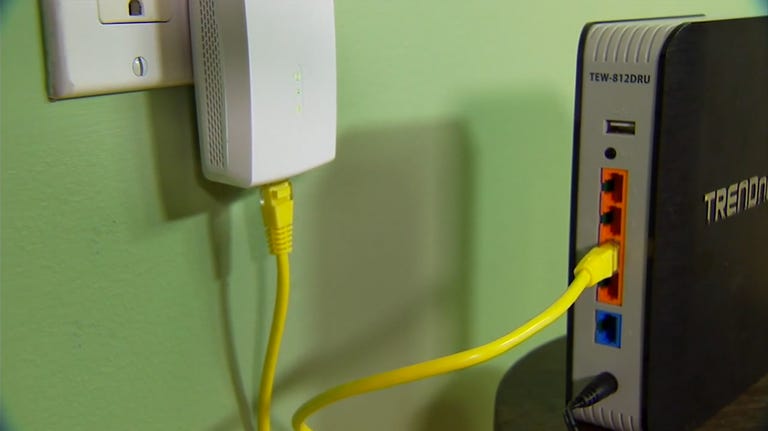
If you haven't checked out your current router's settings before, it's a good idea to have a look, but first check out CNET's home networking guide for some tips.
If you're feeling overwhelmed, this guide will help you learn some of the basics of home networking. You have lots of options, so keep reading to find out the pros and cons of each.
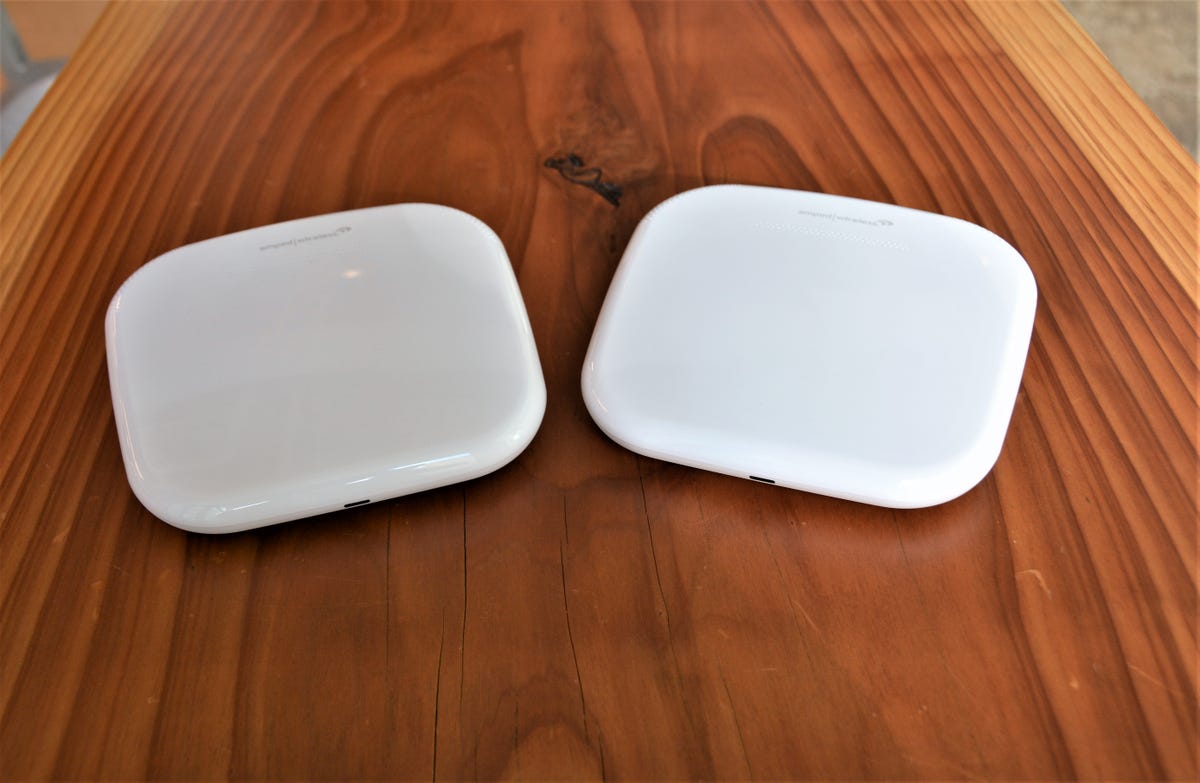
New Wi-Fi mesh systems, like the Ampled Wireless Ally Plus, are designed to fit right in with your home decor.
Home networking sounds complicated. Where do I start?
The newest routers are defined as 802.11ac. The letters are what's important. The "ac" standard was set by the Institute of Electrical and Electronics Engineers (IEEE) for Wi-Fi and refers to the generation and maximum theoretical speed of the router (more than one gigabit per second in this case). Previous IEEE 802.11 standards were a, b, g and n. Most routers are backward-compatible with devices using these older standards, but almost all devices you use today are either ac or n, from laptops to smartphones to media steamers.
Technically, 802.11ac is only available on the 5GHz band (I'll explain this more later), while 802.11n is available on both the 5GHz and 2.4GHz bands. However, you will often see routers with both bands defined as "AC1900" or "AC3000." This is the combined theoretical data transfer speed of all the bands, measured in megabits per second (Mbps). For instance, AC1900 denotes a max speed of 600Mbps on 2.4GHz and 1,300Mbps on 5GHz. This is misleading, because one device can't be on both bands at the same time, and due to environmental factors, your router won't get close to those individual speeds either.
It's also important to know that in networking there are a bunch of links in the Wi-Fi chain, and each one has a limit. The slowest one (e.g., router, internet speed, device hardware) will determine your top speeds. An 802.11ac router won't make an 802.11n device exceed the limits of 802.11n. If your current internet connection is 50Mbps, a $400 router that boasts gigabit speeds won't make your device go faster than 50Mbps.
Your router helps ensure that you are getting the most out of the internet speed you are paying for from your internet service provider (ISP).
OK, so which is better -- a router or a mesh Wi-Fi system?
If you want to prepare your network for the future, an 802.11ac router is the simplest method. The 802.11ac distinction means you will get the latest technology, gigabit speeds and coverage for homes of up to 2,500 square feet. It's best to place your router in a central location of your home for maximum coverage and minimizing dead spots that receive little or no Wi-Fi signals.
Toward the end of 2018, look out for new, faster 802.11ax routers, like the D-Link AX11000. Official standards for 802.11ax haven't been finalized, but predictions say that it will deliver network speeds of up to 10 gigabits per second (Gbps). Be advised that your current devices can't take advantage of 802.11ax speeds. They will cap at the networking standard they were built to meet, such as n or ac. The router will still work, but you'll need new 802.11ax-capable devices to fully utilize the new routers.
If a router isn't fast enough or you aren't getting the coverage you need, you can always expand your Wi-Fi via additional wired access points (recommended for best performance) or Wi-Fi extenders (easier to set up, but usually slower). Some high-end mesh Wi-Fi systems, like Netgear Orbi, even have a dedicated wireless connection, which is used exclusively to send information back to your router. This frees up the other bands and helps extend your Wi-Fi coverage as well as mitigate speed loss.
A Wi-Fi mesh system can cover 5,000 or more square feet, depending on the system and the number of satellite units. They consist of a main hardware unit wired to your modem and one or more wireless satellite units that work together to blanket medium to large homes in Wi-Fi. They are great for novice users who just want to get online quickly and conveniently, but typically offer fewer customization options than traditional routers, in the interest of keeping installation simple. Most major manufacturers, like Asus , Netgear, D-Link and Linksys, have at least one mesh Wi-Fi option and some systems, like the Samsung Connect Home, even act as a hub for smart devices.
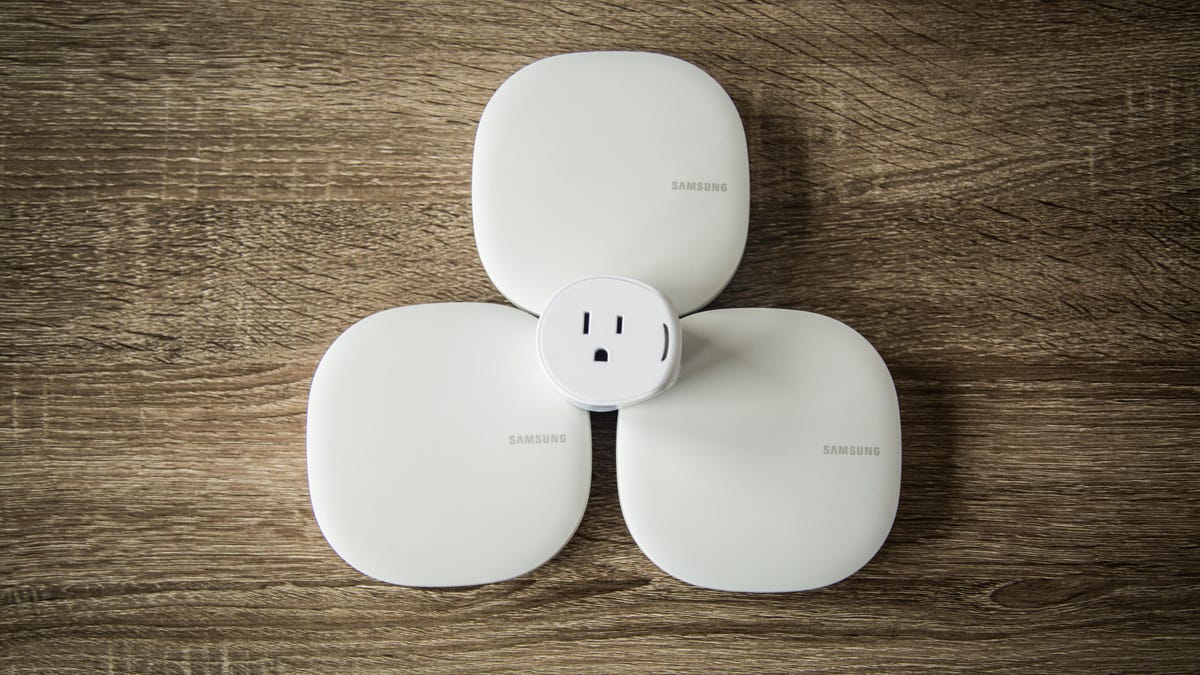
The Samsung Connect Home mesh Wi-Fi system also works as a SmartThings hub.
The most important thing to keep in mind when you're buying a router or mesh Wi-Fi system is budget. Expensive doesn't always mean better. Mesh means multiple devices, so that can add up quickly depending how many units you need. You can find a really good router for less than $200 and it should last you a few years at least.
What about the combo modem-router I'm renting from my ISP. Isn't that good enough?
It will get the job done, but more than likely you are paying to rent it. It's better to ask if there are any restrictions on which modems or routers you can use and then buy your own. It's a much better deal to spend about $100 to $200 for a modem and router than to pay $10 per month for the rest of your life to rent a junky piece of hardware. And keep in mind that most broadband modems of the same standard offer the same performance. The router is where you will see major differences.
You mentioned a Wi-Fi extender. How do I use one of those?
A Wi-Fi extender is the fastest way to extend your router's Wi-Fi network. All you do is place the device about 15 to 40 feet away from your router. It will connect wirelessly to the router and rebroadcast your Wi-Fi signal. Extenders generally only deliver half the original Wi-Fi speed of the router, unless it's a tri-band unit, because it has to both receive and send a signal on the same wireless network frequency. Make sure to check compatibility before you buy one, because some are designed to only work with specific routers or mesh systems.
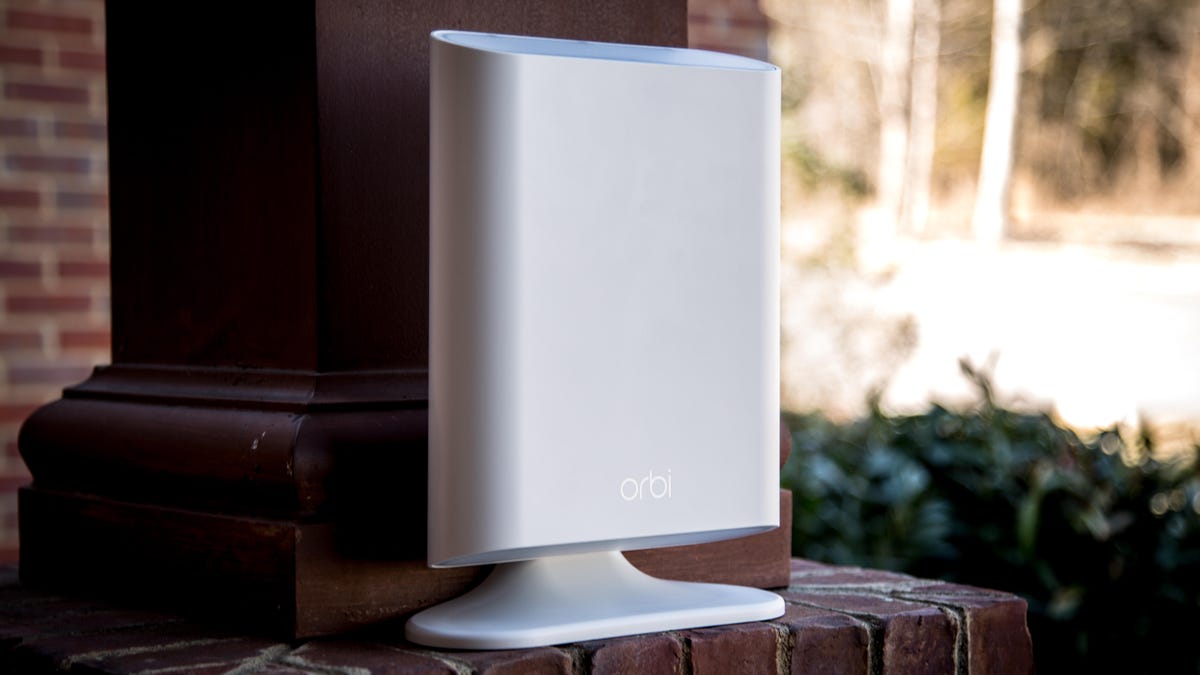
Some extenders, like the Orbi Outdoor, are weatherproof and designed to extend your Wi-Fi signal outside.
That sounds a lot like a mesh system. How is a router and a few extenders different?
Essentially, they are the same. However, the units in a Wi-Fi system are designed for the specific purpose of working together. Mesh systems are generally easier to use and offer seamless hand-off, meaning a device can move from one broadcasting unit to another without interruptions. Mesh systems are also usually more expensive than getting a router (of the same standard) and a few extenders.
OK, so all I really want is faster Wi-Fi. Can I just spend the extra money and get one that says it's the fastest?
First of all, the speeds you read about are theoretical, meaning you have to be in a ideal environment, free from any interference. This doesn't exist. You'll never see 1,300Mbps on 5GHz from an AC1900 router in your home. All your connected devices contribute to speed loss as well. Remember when I said earlier that the slowest link in the chain caps your speed? Older devices can bog down your whole network, since they can't take full advantage of new technology. Expect to get closer to 50 percent of advertised speeds when transferring data locally within your network. If you are downloading or streaming from the internet, your speed will max out at whatever rate you are paying for from your ISP.
Most files and devices mention megabytes and gigabytes, but you're saying routers use megabits? What's the difference?
Don't worry, it's pretty simple. In short, the answer is a factor of eight. Networking speed is described in megabits (Mb, with a lower-case "b"). It's a simple conversion, 8 megabits = 1 megabyte (MB, with a capital "B"). Take the number of megabits and divide it by eight. So, if a router's speed is 800 megabits per second (Mbps), it can theoretically transfer 100 megabytes in one second (800Mb divided by eight equals 100MB). For reference, a CD holds about 700MB, a DVD holds 4.7 gigabytes (GB) and a dual-layer Blu-ray disc holds 50GB.
That's easy. I guess I'm ready for the more complicated stuff. What else should I know when shopping for a router?
Here are some terms you will run into:
2.4GHz and 5GHz bands: These are the two bands in the radio frequency (RF) spectrum that Wi-Fi uses to transmit signals. Basically, they are the highways you use when you connect to Wi-Fi. The 5GHz band offers much faster speeds but has trouble penetrating walls and other obstacles. The 2.4GHz band loses less speed as obstacles are introduced, but it suffers from a more congested wireless transmission environment. Older devices, like microwaves , cordless phones and baby monitors, also use the 2.4GHz band and can cause interference with your router. Both the 2.4GHz and the 5GHz bands have their own strengths, but it really comes down to your environment. 802.11ac works only on 5GHz, while 802.11n works on both 2.4GHz and 5GHz. Lucky for you, new routers come with both.
Dual-band or tri-band: A tri-band router, much more expensive than dual-band, can broadcast three signals, two on the 5GHz band and one on the 2.4GHz band. They work simultaneously to transmit and receive data to and from different devices, helping to keep your network running smoothly. Some mesh systems use the third band as a dedicated backhaul channel to communicate with other units, or just to have a faster path to and from the main router. Dual-band routers lack a second 5GHz band, but you can set some of these devices to automatically choose the band with the best signal when your devices connect.
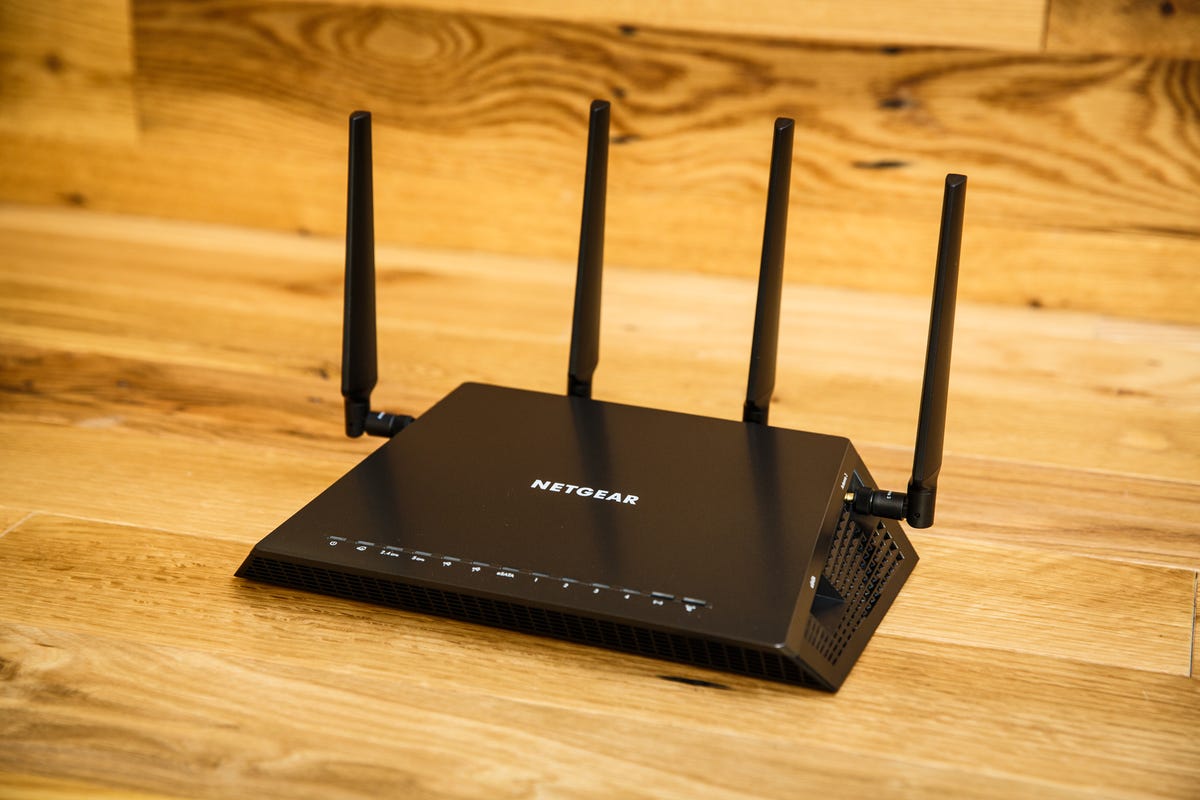
A powerful router can improve Wi-Fi throughout your home.
Channel and channel width: Each band has a set of channels that you can use. Most routers automatically pick them for you, but sometimes there are better channels with less interference. The 2.4GHz band has 11 channels (numbered from 1 to 11) available in the US, spaced 5MHz apart. Wi-Fi uses at least 20MHz, so finding non-overlapping channels is important. These are 1, 6 and 11. If you manually choose the other channels, you could cause problems for others and probably yourself. You can also use 40MHz channels, which are wider and can be faster. You do use more space at these higher channel frequencies, so the chance of running into interference from other Wi-Fi or devices is greater.
The 5GHz band is a little more complicated, but it's less crowded with 24 non-overlapping channels that are 20MHz apart. The channel width can even go up to 160MHz. Some 5GHz channels can't be used or only used at certain times due to governmental restrictions, but in general there is more space available in the 5GHz band for your Wi-Fi signal to achieve much faster speeds.
You can always change your channel or channel width to see which works best for your home. However, picking the auto option is generally your safest bet. A channel can be fine today and then crowded tomorrow, so most people won't want to test out channels every time they connect to the internet. You always have the option to change these settings if you think it will make a difference, but most of you won't need to mess with them.
Antennas and spatial streams: These two are often mixed up. A 4x4 MIMO (multiple input/multiple output) router has four transmit (send) antennas and four receive antennas. You will also find 3x3 and 2x2 on 802.11ac routers. Each antenna wirelessly sends/receives data to and from your devices, which also have antennas that send and receive data. These independent data signals, called spatial streams, are sent simultaneously over the same channel.
Think of streams like lanes on a highway. A router antenna can have one to four streams or "lanes" to give you more space to send data. Each stream sends the same data though, because some of it gets lost in transmission due to interference. Simultaneously sending multiple streams of the same data means better reliability. If one of the streams is incomplete, theoretically another stream will have the missing information and the router won't have to resend the data. It can move on to sending the next piece of data to that device or a different one. Generally, more streams mean faster speeds, but more antennas don't always mean better performance.
Antennas are needed for the 2.4GHz band and 5GHz band, so sometimes a router isn't using all of the antennas you see. Just saying a router has four antennas needs further clarification. A router can use each antenna for one or both bands, depending on the hardware. Mesh systems usually only have internal antennas, so sometimes you can't see how many there are at all. The 802.11ac standard allows for up to eight antennas and eight streams on 5GHz, but currently you aren't going to find anything higher than 4x4 antennas with four streams.
The position of your antenna can also affect your Wi-Fi. When the antenna is vertical, the signal emanates out in a horizontal direction. So, if you want a better signal upstairs or downstairs, try positioning one of your antennas parallel to the floor. Just make sure you know which antenna you are moving (2.4GHz or 5GHz), if they are different. Usually, the router or antenna will be labeled if an antenna works only for one band. If they aren't labeled, you can refer to a product manual, datasheet or manufacturer's website. Often, antennas are dual-band and work for both bands simultaneously.
Your connected devices also factor in to what your router can do. If your phone has only one antenna, the router can only use one antenna to send and receive data. Likewise, if your device has three antennas, like some high-end laptops, your 4x4 router can use three antennas to send four streams of data each.
MU-MIMO: This is only available on 802.11ac (which is 5GHz only). It allows fast, simultaneous Wi-Fi connections to multiple devices, but only if the client device supports MU-MIMO. For example, if your MU-MIMO router is 4x4, it can handle four 1x1 MU-MIMO devices (or two 2x2 MU-MIMO devices, etc.) at the same time, instead of one after another. Older routers send/receive data to/from one client device in one direction at a time, The data packets are lined up one after another and sent one at a time, often leaving most of your bandwidth unused. MU-MIMO routers can communicate to multiple devices at the same time. This number depends on how many streams the router has, up to four.
There are a few restrictions though. MU-MIMO can't send multiple streams in the same physical direction. You need to space out your devices to fully utilize MU-MIMO (e.g., if the router has four streams, the router could send one signal in each of the four cardinal directions), and this technology only works for routers sending data, not receiving data from client devices. This is one reason why a router works best when you place it in a central location of your home.
Beamforming: "Explicit" beamforming allows a router to communicate back-and-forth with a device by focusing a wireless signal directly towards it, rather than sending the signal out in every direction and losing strength. "Implicit beamforming" is best for older devices without the same beamforming standard and allows the router to make a best guess where the device is located.
LAN ports: Most contemporary routers will have "gigabit Ethernet" (10/100/1,000) ports rather than "fast Ethernet" (10/100) ports for wired connections. Ports are another one of those "links" in the Wi-Fi chain. Fast Ethernet caps speeds at 100Mbps while gigabit Ethernet tops out at 1,000Mbps. High-end routers may have eight ports, while standard is four. Some even have link aggregation, which allows you to combine two ports for a 2Gbps wired connection.
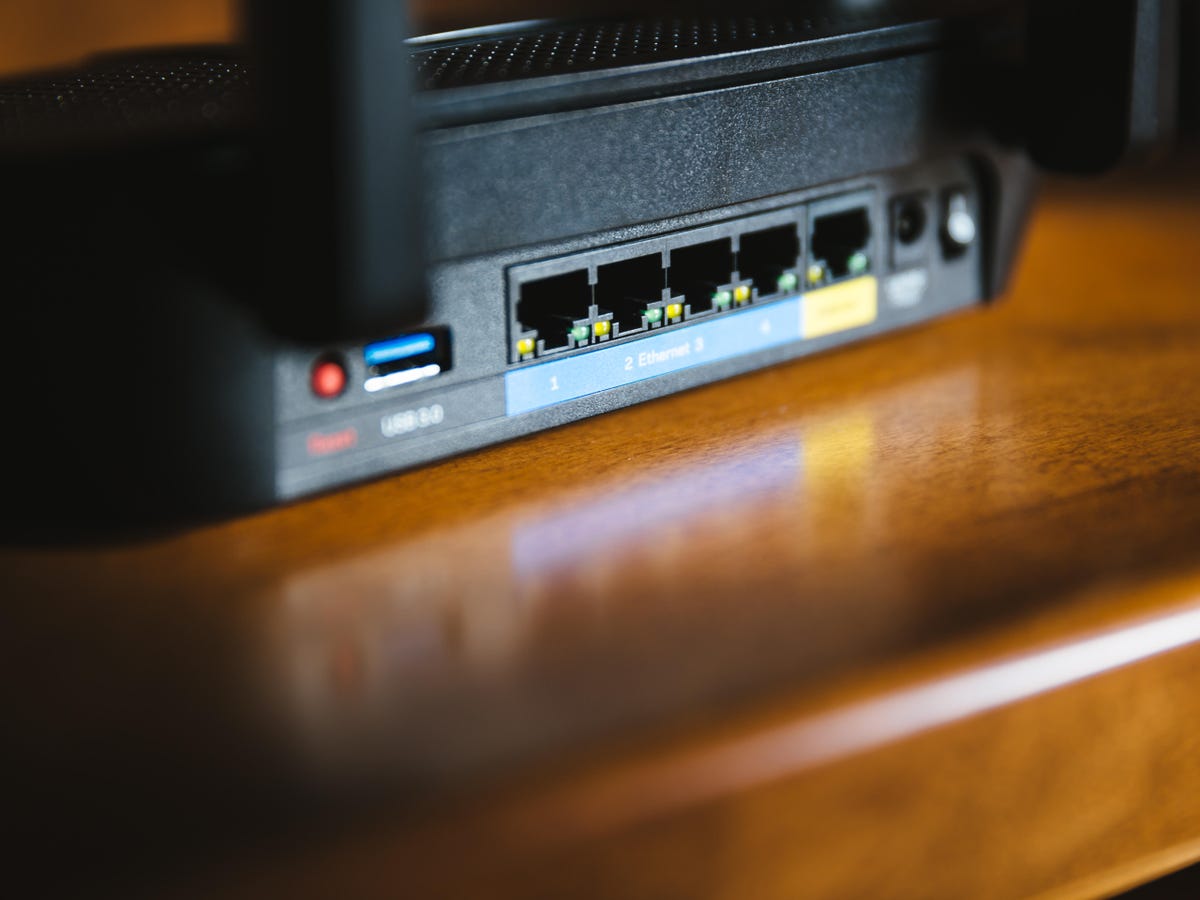
One gigabit WAN port for internet access and four gigabit LAN ports is standard, but some routers have up to eight LAN ports for wired devices.
USB ports: One USB port is standard but some have two. Many mesh systems have none. You can use these ports to connect an external hard drive to back up data, access shared files from any network device, stream downloaded digital videos or photos or securely access your files remotely when you are away from home. You can also charge your mobile device or host a printer, so you can print from any device on your network. USB 3.0 ports are the most popular and can transfer data at up to 640 megabytes per second (MBps), but some cheaper routers still have USB 2.0 which performs at up to 60MBps.
QoS (Quality of Service) and network prioritization: Both give you control over the traffic on your network. They let you decide which devices or types of data are most important. If you are streaming Netflix and your spouse is downloading files, you can tell the router to make sure Netflix gets the lion's share of your bandwidth so you don't experience buffering. These settings can vary greatly between routers, with gaming routers usually offering the most customization options.
Security: With all the new smart devices available today, security is a major concern for your home network. Many new routers include extra software that will protect your network from malware, ransomware and viruses. Some are free and some require paid subscriptions, but additional security is always nice when it seems like every month you hear about another data breach.
Apps: Many routers offer an app for setting up or managing your network. Generally, they're more limited than browser-based menus, but they let you quickly make changes or monitor your device. Some allow you to manage your network when you are away from your home, but they generally require you to register with at least your email address.
Apps also can notify you when a new device connects to your network and let you see which devices are using up bandwidth. Amazon Alexa works with some routers and mesh systems, but the voice-activated features are usually limited to turning your guest Wi-Fi on/off, resetting the router and securely retrieving your password. Right now there aren't many great apps out there, but most manufacturers update them periodically.
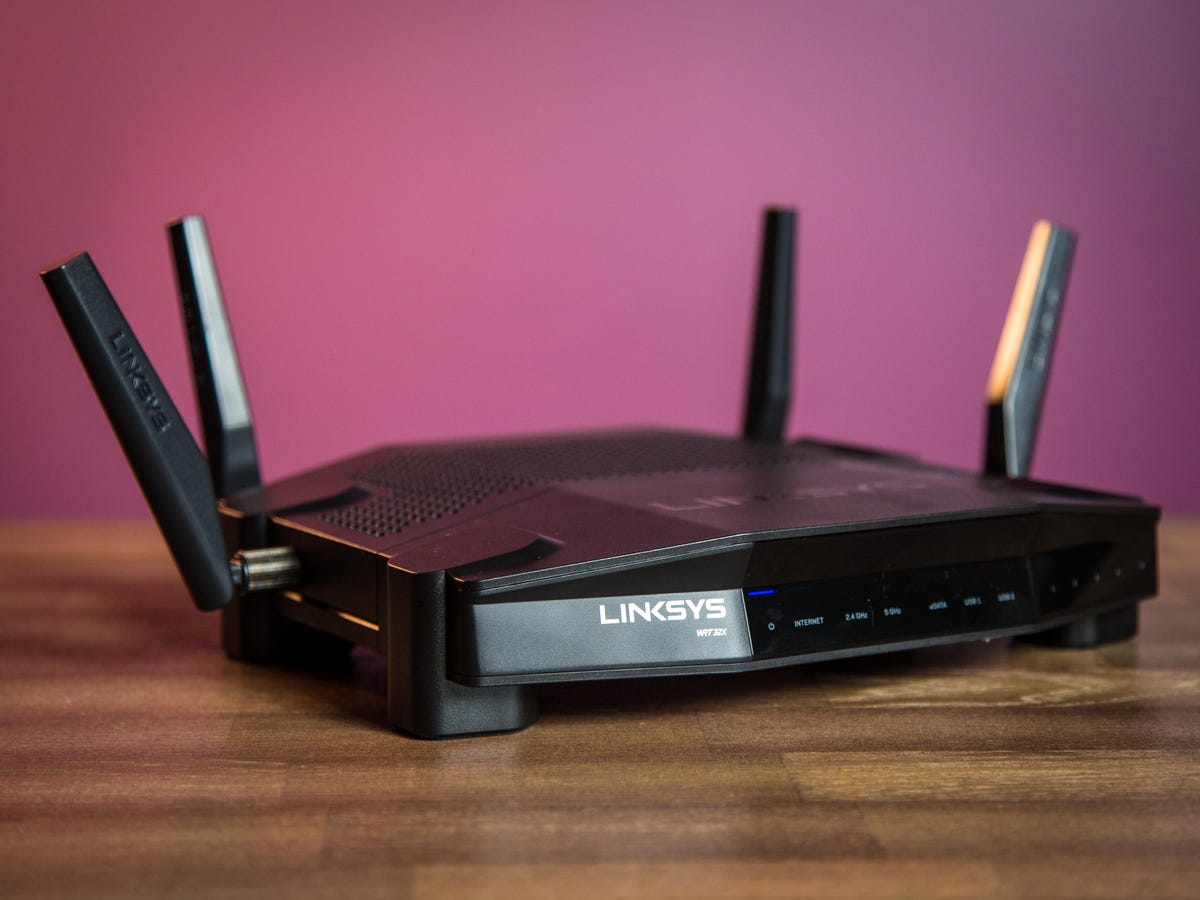
The Linksys WRT32X has gaming software built in, but the hardware specs are the same as the Linksys WRT3200ACM.
WikiDevi is a great resource for comparing hardware specs if you need more information about a specific router or mesh system. Sometimes you'll find that a manufacturer made two routers with the exact same hardware, but one costs more just because of software differences that you may never use.
That's a lot to take in. While all this stuff is fresh in my mind, can you tell me about a couple of routers that you like?
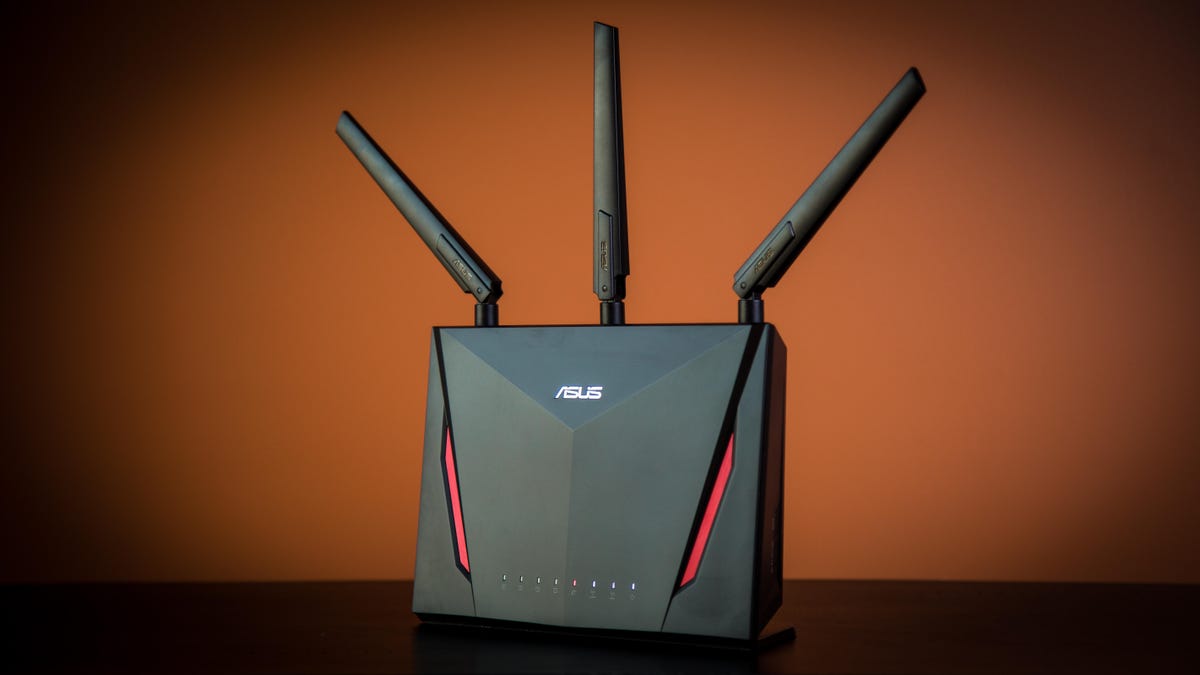
The Asus RT-AC86U is one of the best routers we've tested.
Asus AC2900 dual-band Wi-Fi router
It's one of the best all-around routers. It has all the latest features, including extra security for all of your devices. This router should maximize your bandwidth and keep your home network running smoothly.
What I like
Asus makes the setup process super-easy, and you can customize just about everything from the menu, but only if you want to. The default settings are pretty good. It's also affordable at $200.
It has easy-to-use network prioritization that allows you to choose which devices can use the most bandwidth and added security features from Trend Micro. Not only that, I saw near-gigabit speeds during my testing
What I don't like
It's only dual-band, so you are missing out on a second 5GHz band to help alleviate network traffic. A good tri-band router will cost at least $100 more.
Who should buy it
This has a little something for everyone, including fast speeds, wide coverage, gaming features and security. It should work well in medium to large homes and someone of any skill level can set it up.
Alternatives
Asus AC3100 dual-band Wi-Fi router : It's a little more expensive but has great speed and coverage and offers eight gigabit LAN ports.
Synology AC2600 dual-band Wi-Fi router : It has fast speed, long range and lots of features, including dual WAN to host two internet connections.
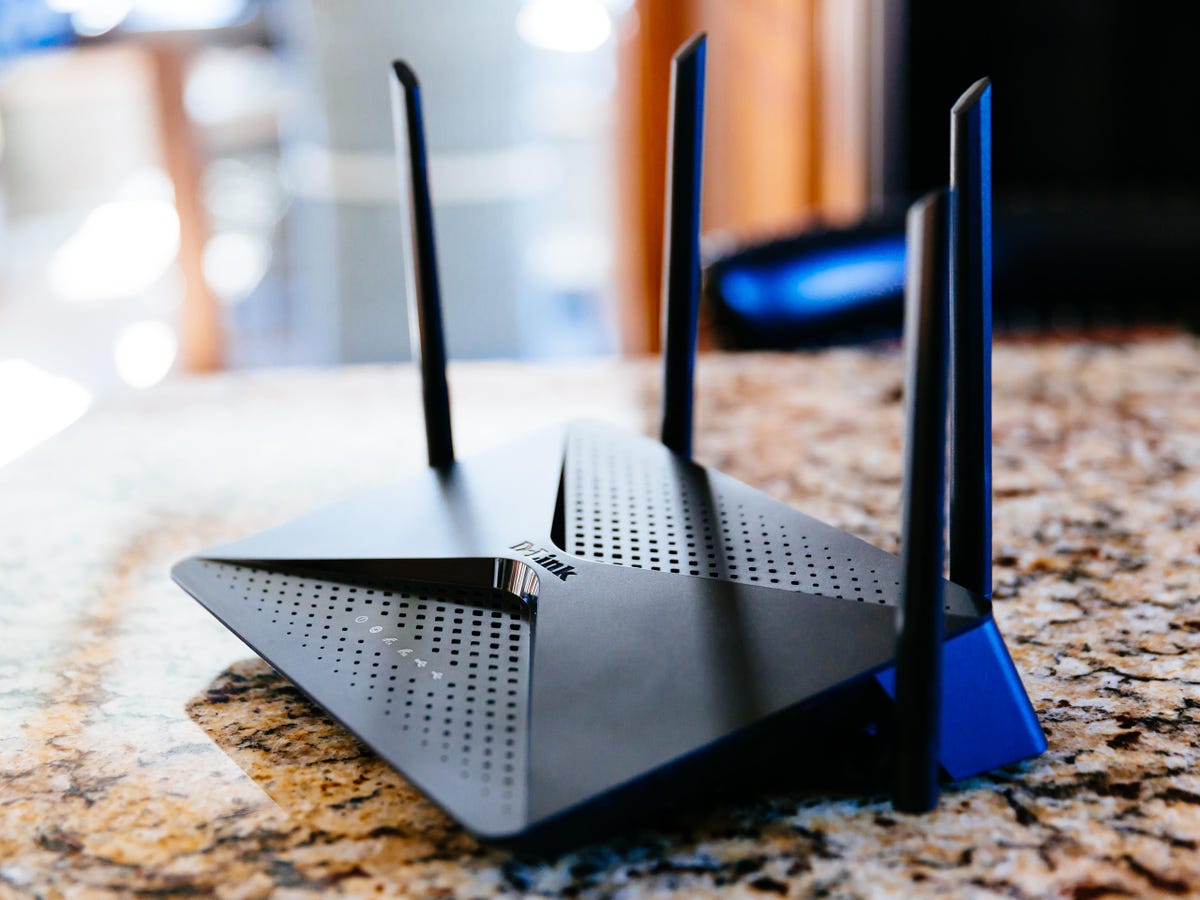
The D-Link DIR-882 has great coverage and speed for the price.
D-Link EXO AC2600 dual-band Wi-Fi router
It's an affordable router that provides solid Wi-Fi coverage and lightning fast speed throughout your home.
What I like
Setup is easy and the menu has lots of customization options.The price tag is affordable at $150 and you get some high-end features, like two USB ports, 160MHz channel support and easy-to-use network traffic prioritization.
The speed from this router was very impressive, maxing out at nearly a gigabit. This will come in handy if you have a fiber internet connection or do a lot of file transfers within your home network. It also offers fast speeds at long range, so coverage should be very good in a larger home.
What I don't like
This router doesn't offer tri-band, but that's to be expected at this price point. The menu can be frustrating at times since it takes 20 to 30 seconds to save each page after you change a setting.
Who should buy it
This one is geared more toward people with little to no experience setting up a router. Customizing the settings is time consuming, so advanced users will get frustrated. It has great coverage though, so for the price it's worth it for anyone.
Alternatives
D-Link AC1900 dual-band router: It's cheaper and has the same hardware specs, minus the USB ports.
Linksys Max Stream AC2200 tri-band router: The menu is easy to navigate and you'll get a lot of advanced features.
I think a mesh systems is better for me. Which do you recommend?
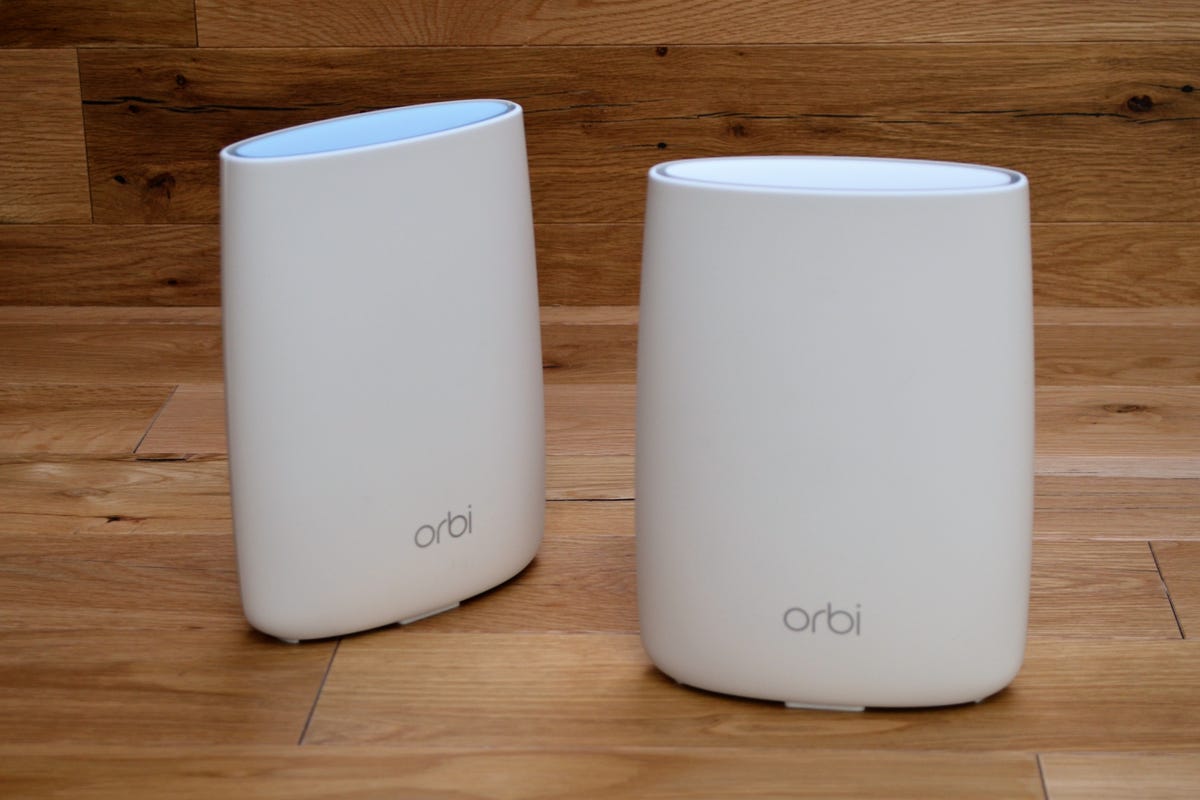
The Netgear Orbi is one of the best mesh Wi-Fi systems on the market.
Netgear Orbi AC3000 system
It's a convenient two-piece mesh system that will cover up to 5,000 square feet of your home with fast Wi-Fi.
What I like
It offers powerful hardware that's easy to set up and can deliver fast local speed over long distances. Each unit has a backhaul band to keep your speed from dropping off. The system doesn't require you to register for an account with Netgear, nor does it need to connect to Netgear to work.
What I don't like
The design is big and bulky and the system is expensive for the initial set of two units.
You also can't use a network cable to connect the units together.
Who should buy it
Anyone who wants a hassle-free Wi-Fi experience with great coverage and fast speeds.
Alternative
Eero AC2200 2nd generation system: It a tri-band system with serious range, but it's expensive and lacks Ethernet ports.
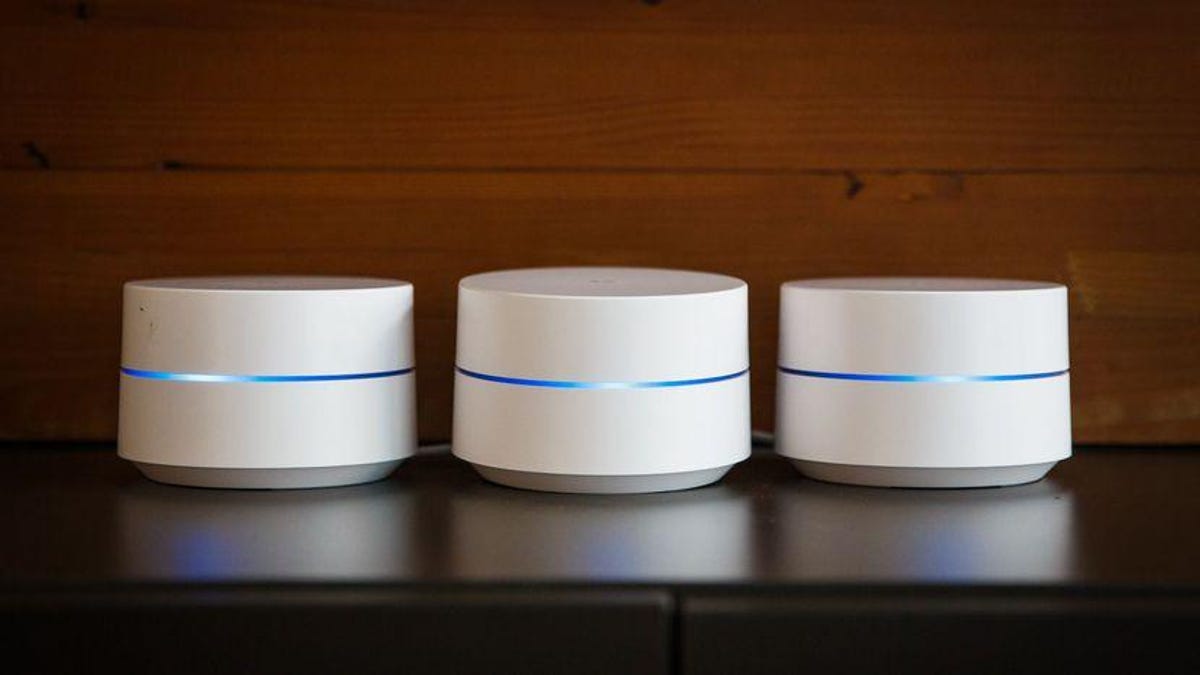
Google Wifi is more affordable than most mesh Wi-Fi systems and offers great coverage.
Google Wifi AC1200 system
Google's
first attempt at mesh Wi-Fi. It's easy to set up and offers high quality Wi-Fi for up to 4,500 square feet at a price cheaper than most other systems.
What I like
The app is incredibly easy to use and it's reliable, wide coverage area gives you fast speeds throughout your home. You can link the units together using network cables to increase speed.
What I don't like
It underperforms during heavy local tasks and can't keep up with ultra fast broadband connections. It requires a Google account and needs to connect to Google at all times to work. Like most mesh systems, it lacks some features and customization.
Who should buy it
People who need an affordable, convenient way to cover their large home with Wi-Fi that's also fast enough for shared access to the internet.
Alternative
Luma AC1200 system: Very similar, but much cheaper and not as fast.
Not that my brain can take much more right now, but is there anything else I should know?
Plain and simple, do your research. It's very important not to rely solely on ads or advice from marketing materials when buying networking devices. Everyone's environment is different. Read reviews, look at test scores, and check different sources. You can start by checking out our lists of best routers.
Good luck!